

You open Claude Code, type "make me a website for my blog," and hit enter.
A few minutes later you've got... something. A purple gradient. A headline that says "Welcome to Your Website." Three cards with icons nobody asked for. You wouldn't show it to anyone.
Sound familiar?
Here's the thing. Claude Code is very good at building websites. It's just not a mind reader. The quality of what comes out depends almost entirely on what you put in.
The good news? You don't need to learn to code to prompt it well. You need to learn to brief it, the same way you'd brief a designer or a developer you hired. I recently came across a great infographic by Ruben Hassid (how-to-ai.guide) that boils this down to five steps. In this guide I'll walk you through each one, expand on it with my own examples, and give you copy-paste prompts you can use today to build a blog, a landing page or a small business site.
Let's get into it.
Why Your Prompts Matter More Than the Tool
Claude Code is an AI coding agent. You describe what you want, and it writes the files, runs them and fixes problems along the way. When you leave gaps, the AI fills them with the most average choice it can think of. Average fonts. Average colors. Average layout. That's where the "every AI website looks the same" feeling comes from.
So every step below is really about one thing: closing the gaps before Claude has to guess.
Step 1. Start With a Screenshot
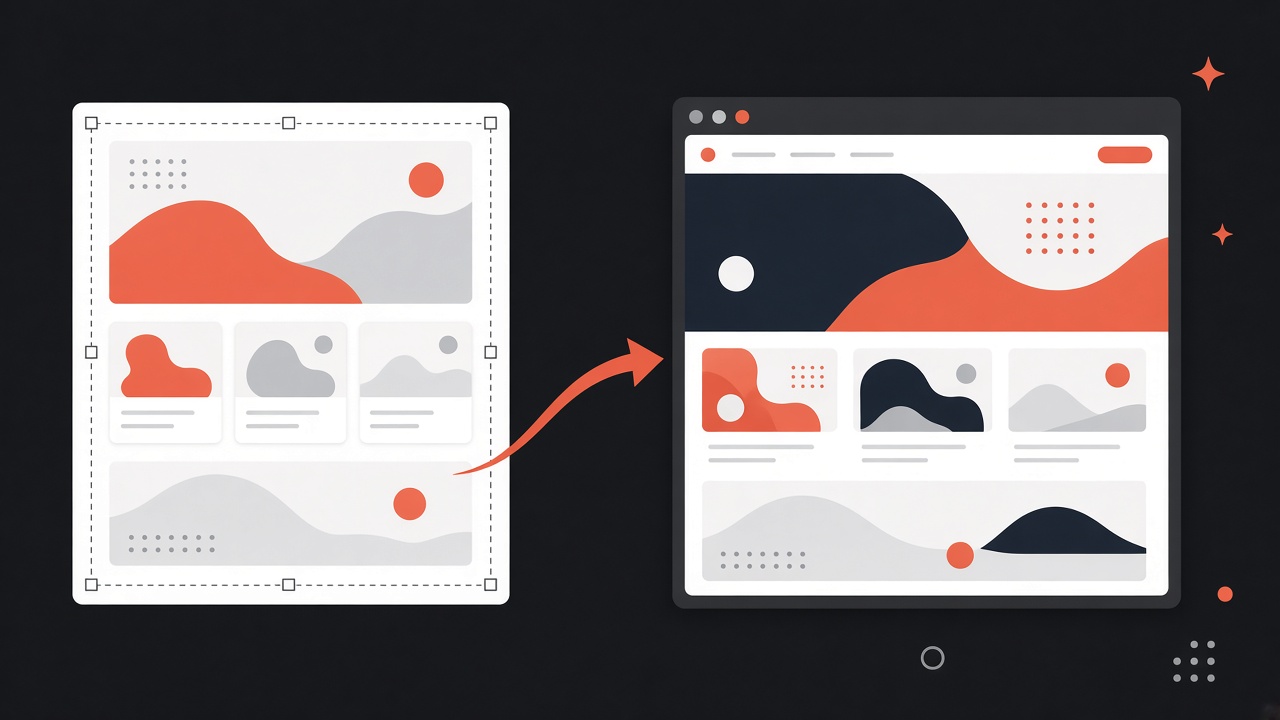
Describing a design in words is hard. Showing one is easy.
So don't start by explaining what you want. Find a website you like the look of, take a screenshot, and drag the image straight into Claude Code. Claude can read images, so it'll study the layout, spacing and structure and recreate something similar in code.
Then tell it what to change:
Build me something that looks like this, but for my food blog.
Keep the layout and spacing. Change the colors to warm cream and
dark green, and swap the hero image for a placeholder of a kitchen.
Where to find good screenshots: Hassid's pro tip is to browse design galleries like Dribbble, Awwwards, Mobbin and Land-book. Screenshot the best pieces, then build on top of them.
Two tips from my own use:
- Use it as inspiration, not a photocopy. Ask for the layout and feel, then put your own content, colors and brand on it. Don't clone someone's site wholesale.
- Crop to what you like. If you only love the header, screenshot only the header. Claude will focus on what you show it.
Step 2. Describe the Result, Not the Steps
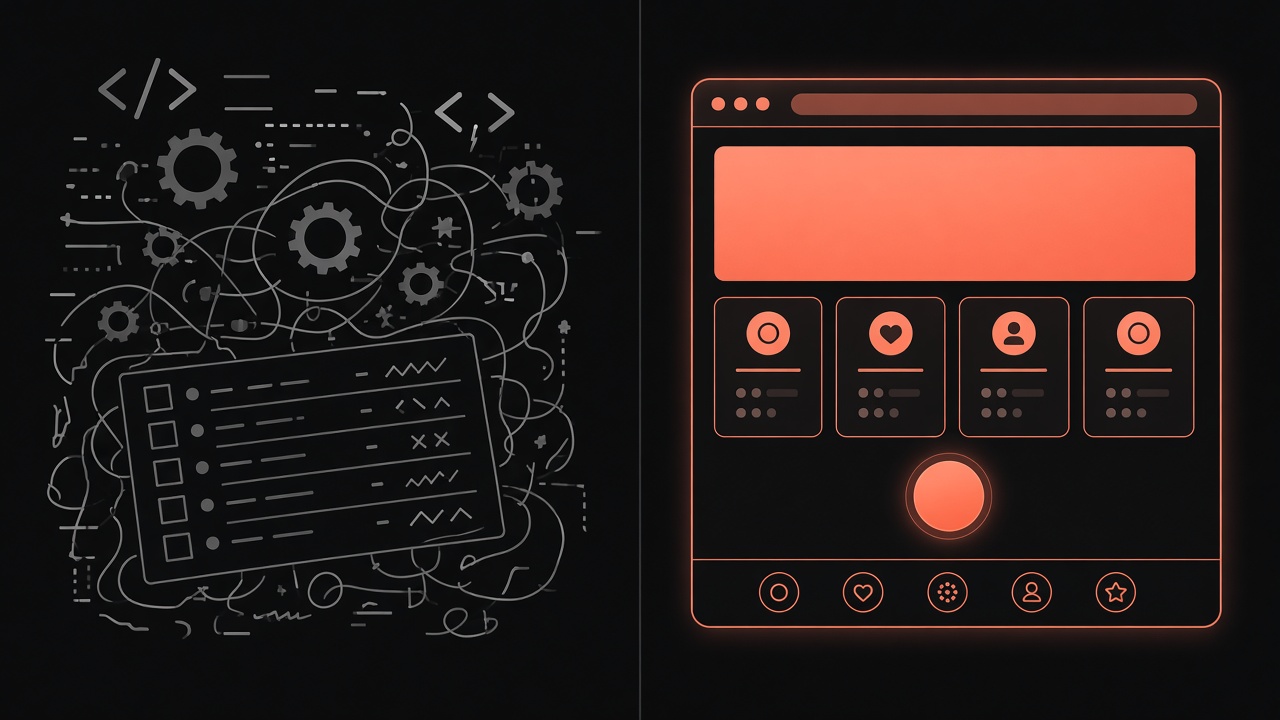
This is the step most people get backwards.
When you're not a developer, it's tempting to sound like one. So you write prompts like "Create an HTML file, add a CSS stylesheet, use flexbox for layout, make it responsive." It feels technical. It feels precise.
It isn't. You're telling Claude how to build, which it already knows. What you're not telling it is what to build, which only you know. Describe what should exist when it's done, and let Claude pick the steps.
I want a clean landing page for my consulting business.
Big headline, 4 services listed, a booking link,
and a footer with my socials.
You can see that page in your head just from reading it. That's the test.
Here's how the difference plays out across a few common jobs:
| What you want | Bad prompt (steps) | Good prompt (result) |
|---|---|---|
| A landing page | "Create an HTML file, add a CSS stylesheet, use flexbox, make it responsive." | "A clean landing page for my consulting business. Big headline, 4 services, a booking link, footer with my socials." |
| A blog homepage | "Make a grid with 3 columns and a sidebar component." | "A blog homepage that shows my latest 6 posts as cards with a photo, title and one-line summary, plus a newsletter signup at the top." |
| A fix | "Change the CSS media query for the nav." | "The menu covers the headline on my phone. Fix it." |
| A style change | "Make it look good." | "Use Inter for body text, #D97757 for buttons, and lots of whitespace between sections." |
Common mistake: writing prompts that read like a developer's to-do list. If your prompt sounds like code, rewrite it as a brief describing what the visitor sees.
Step 3. Point Claude to a DESIGN.md File
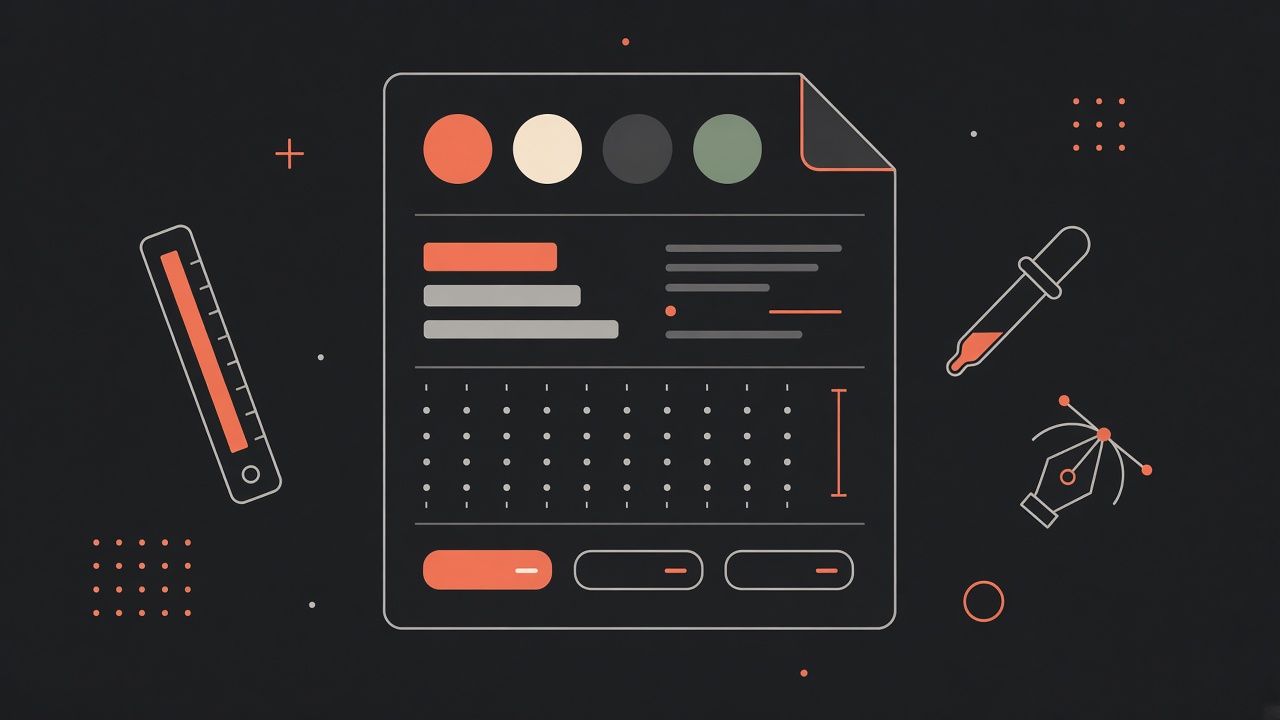
"Make it look good" is the most common styling prompt on the planet. It's also the least useful.
Good like a bank, or good like a bakery? The fix is a DESIGN.md file. It's a plain text file that sits in your project folder and spells out your visual rules: fonts, exact colors, spacing, button styles, what to avoid. Claude reads it and follows it, so every page you build after that matches.
You can get one in a couple of ways:
- Let Claude draft options. The infographic suggests typing
/designand letting Claude propose a few looks for you to pick from. - Grab a ready-made one. getdesign.md has a collection of DESIGN.md files inspired by well-known product sites. Download one, drop it in your project folder, and adjust it.
- Write your own. It doesn't need to be fancy. Here's a starter:
# DESIGN.md
Fonts: "Playfair Display" for headings, "Inter" for body text.
Colors: background #FAF7F2, text #1F1F1F, accent #D97757 (buttons and links only).
Spacing: generous whitespace, at least 80px between sections.
Images: rounded corners, soft shadows.
Avoid: gradients, stock icons, more than one accent color.
Then tell Claude to use it:
Use this DESIGN.md for all the styling. Don't invent colors,
fonts or spacing that aren't in it.
Common mistake: naming a vibe instead of the details. "Modern and clean" means nothing. "Inter, #1F1F1F on #FAF7F2, 80px between sections" means exactly one thing.
Step 4. Build One Piece at a Time
Here's where enthusiasm gets people in trouble.
You've got the whole site in your head, so you dump all twelve features into one giant prompt.
Don't.
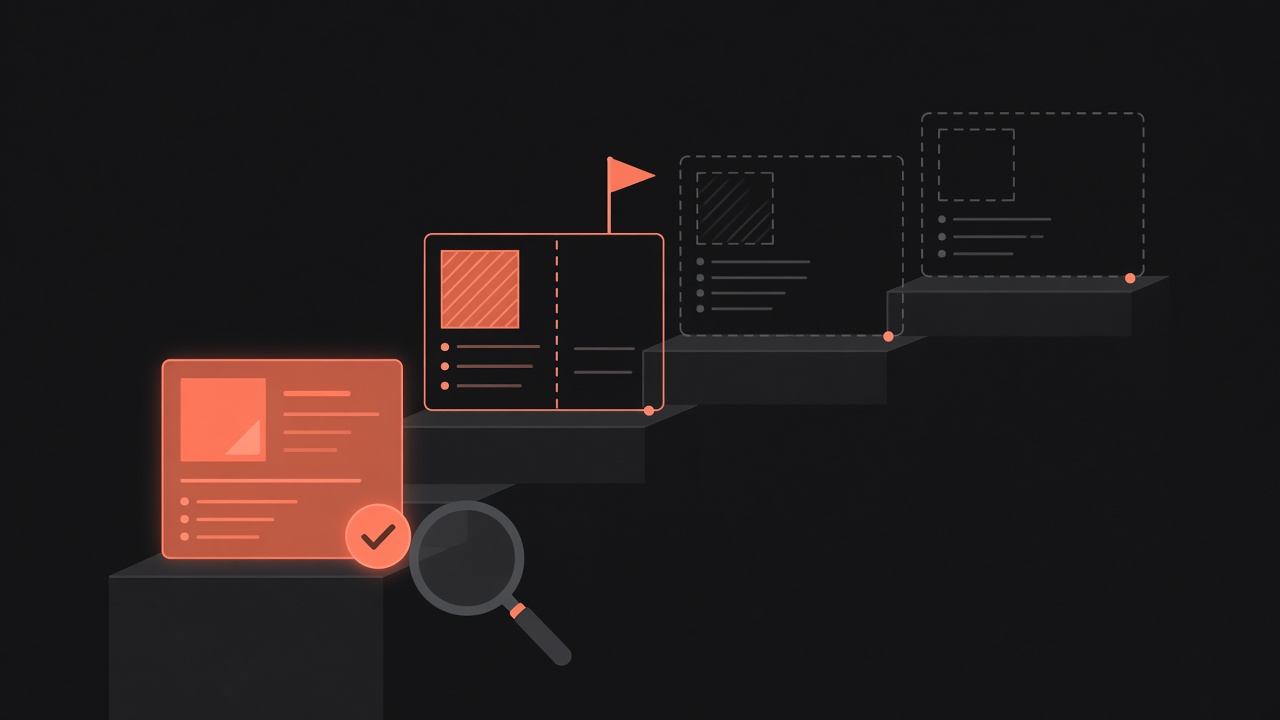
Build the home page. Get it right. Then move on to the next page. One deliverable per prompt.
- Less room to break things. Small, focused prompts give Claude less room to mess up what already works.
- You stay in control. You review each piece before stacking the next one on top.
- You save tokens. Small changes use less of your usage allowance than rebuilding everything.
For a blog, a sensible build order looks like this:
- Home page (header, hero, latest posts)
- Single blog post template (the page readers will spend the most time on)
- About page
- Contact or newsletter signup
- Final polish: footer, favicon, mobile check
Claude can check its own work as it goes, and in setups with a live preview it can look at the page itself. When something still looks off, don't describe it in a paragraph. Take a screenshot, paste it in, and keep the fix prompt short:
This section overlaps on mobile. Fix it.
Here's a screenshot. The footer text is too small to read. Make it bigger
without changing anything else.
That last line, "without changing anything else," is one of the most useful phrases you can learn.
Step 5. Make Claude Interview You First
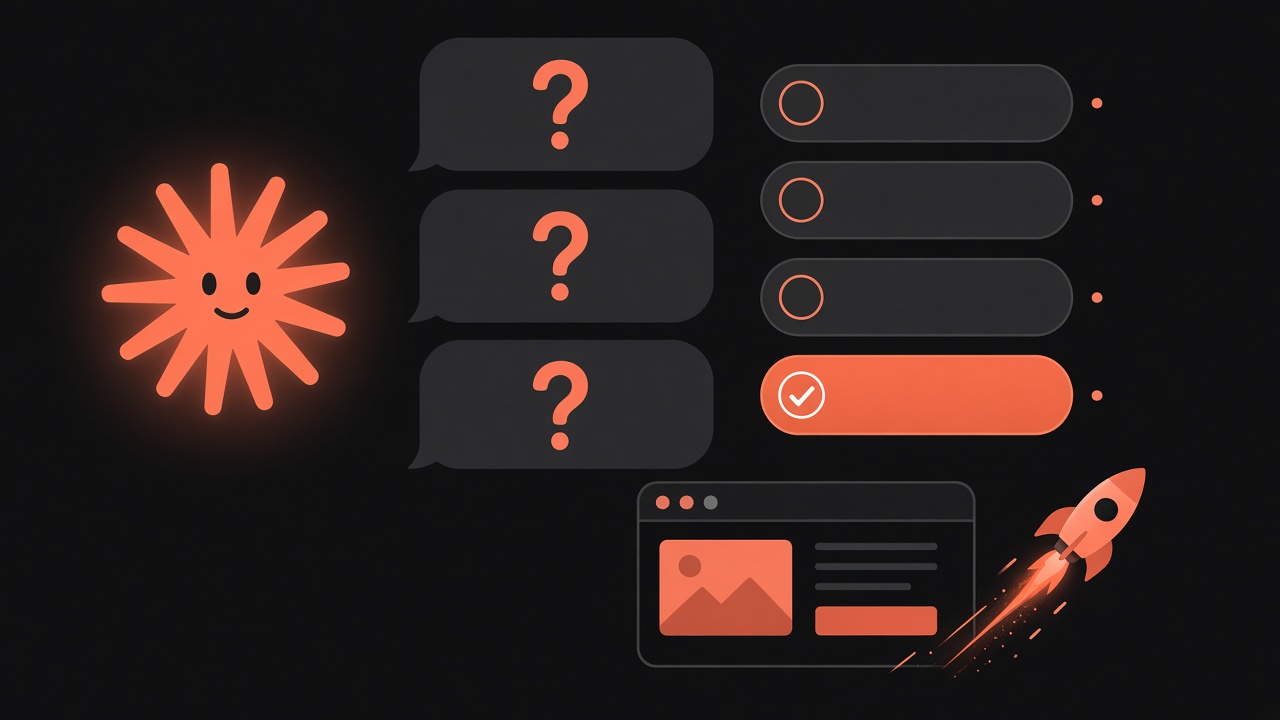
This is my favorite step. Instead of you trying to write the perfect prompt, you let Claude ask the questions. Who's the site for? What's the main thing visitors should do? Do you have a logo? You answer, and it builds from your answers.
Hassid's version is a single prompt saved to CLAUDE.md, a file Claude Code reads automatically at the start of each session. That way you paste it once and Claude uses it every time. Here's my take on it, adapted for bloggers:
You're my CTO. I'm the CEO. I don't write code and I don't read it.
Before you build anything, ask me a few questions, one at a time,
about who the site is for, what it should do and how it should look.
Then build it. Check it yourself in the preview and fix what's broken.
When it's ready, publish it and give me a link.
To save it, just tell Claude:
Save this to CLAUDE.md so you follow it in every session.
Claude asks the questions, you click or type the answers, and it ships. Hassid says his own Calendly-style example went live in 24 minutes using this approach. Your mileage will vary with the size of the project, but the principle holds: a good interview beats a long prompt.
One note on "publish it": whether Claude can put your site live depends on your setup and hosting. If it can't, ask it to walk you through deploying step by step.
More Prompts Worth Copying
Once you've got the basics down, these prompts (some from the infographic, some mine) are worth keeping in a notes file.
Turn your resume into a site:
Build a portfolio site from my resume.pdf. One page, with my
experience as a timeline and a contact button at the bottom.
Copy a look for your own business (attach a screenshot):
Build this, but for my business. I run a small bakery in Austin.
Keep the layout, use my menu items, and add opening hours.
Ship it:
Publish it and give me a link.
Beyond websites:
Turn this folder of PDFs into one clean spreadsheet, one row per file,
with the date, client name and total in separate columns.
A Quick Checklist Before You Hit Enter
Hassid closes his infographic with three rules, and they're worth taping to your monitor:
- Describe the result, not the steps. Tell Claude what the visitor sees.
- One deliverable per prompt. Home page first. Then the next thing.
- Don't build longer than you'll use it. A simple site you launch this weekend beats a perfect one you're still tweaking next quarter.
Ship it, then improve it.
The Part Claude Code Doesn't Do: Filling Your Blog
So now you've got a beautiful blog. Fast, clean, on-brand.
And empty.
A website gets built once. A blog has to be fed every week. The design was fun. Writing the twentieth post isn't.
That's where Blogi AI Writer comes in. Claude Code builds the house. Blogi fills it with content.
Blogi is our multi-AI autoblogger. It writes SEO articles that target long-tail keywords and publishes them to your blog on the schedule you choose. Here's what it handles:
- Writes with multiple AI models, so your articles don't all sound the same.
- Targets your topics and keywords, with an endless stream of fresh posts.
- Handles the SEO details: headlines, meta descriptions, tags, categories and slugs.
- Creates illustrations and infographics for each article.
- Autoposts to WordPress on daily, weekly or custom schedules.
- Supports multiple blogs, languages and writer personalities.
Prefer hands-on? Use it as a manual writing assistant and edit every article before it goes live. (You should. Here's how to humanize AI content if you want a quick checklist.)
Final Thoughts
Prompting Claude Code well isn't about learning code. It's about learning to brief.
Show it a screenshot. Describe the result. Give it a style guide. Build one piece at a time. And let it interview you before it starts. Do those five things and you'll get a site you're proud of, not one that looks like everyone else's.
Then give that site something worth reading. If you're new to writing with AI, start with our guide on how to write a blog post with AI, step by step.
FAQs About Prompting Claude Code
Do I need to know how to code to use Claude Code?
No. You describe what you want in plain English and Claude writes the code. Knowing a little helps with troubleshooting, but the steps in this guide are built for non-coders.
What's the difference between CLAUDE.md and DESIGN.md?
CLAUDE.md holds instructions Claude Code reads at the start of each session, like how you want it to work with you. DESIGN.md holds your visual rules: fonts, colors and spacing.
Why does my AI-built website look generic?
The prompt left gaps, so the AI filled them with safe, average choices. A reference screenshot and a DESIGN.md with exact fonts and colors fix most of it.
How do I stop Claude from breaking things that already work?
Keep prompts small, change one thing at a time, and add "without changing anything else" to your fix requests.
Can Claude Code write my blog posts too?
It can draft text, but it's built for coding. For a steady stream of SEO articles published on a schedule, a dedicated tool like Blogi is a better fit.
Ready to fill your new site with content? Try Blogi AI Writer today.